How To Invite Managers
Expanding your operational team is a seamless process. Because Instagrocer Storefront uses a unified security framework, the invitation process is identical whether you are onboarding a global Brand Manager or a location-specific Store Manager.
This guide walks you through sending an invitation and explains the onboarding steps your new team member will experience.
Step 1: Send the Invitation from the Dashboard
To invite a new manager to your platform workspace, follow these steps:
- Navigate to the main side navigation bar on your dashboard and select Managers.
- On the top right of the Managers overview page, click the Invite Manager button.
- A pop-up form will appear requesting the invitee’s primary information.
Filling Out the Form
-
First Name & Last Name: Enter the legal name of the employee.
-
Work Email (Domain-Locked): To maintain enterprise security, all manager accounts must use an authorized company email address.
To save time and prevent typos, your company’s email domain is pre-filled (e.g.,
@yourcompany.co.ke). You only need to type the unique prefix (the text before the@symbol) into the email field.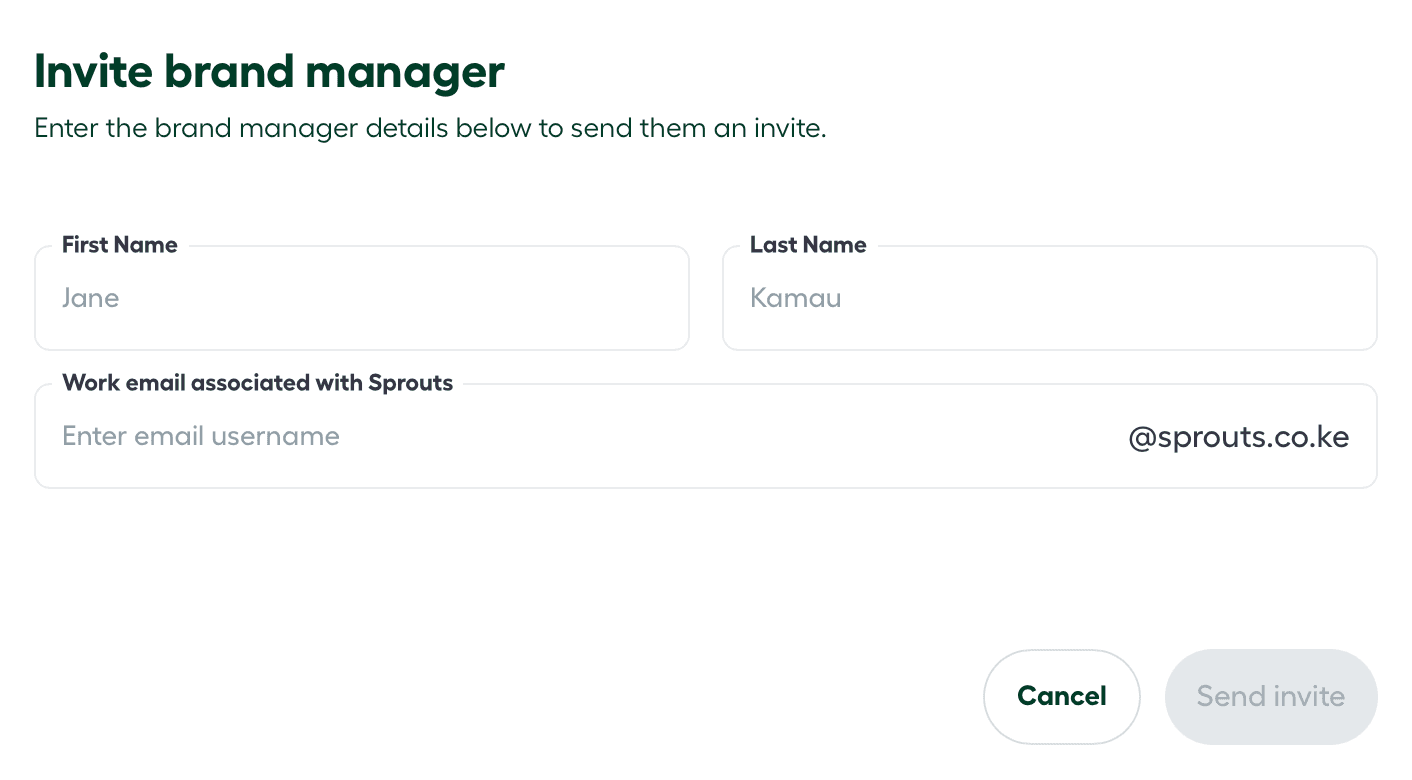
- Click Send Invite.
Step 2: The Invitee Acceptance Workflow
Once you click send, the platform initiates an automated onboarding sequence for the new team member:
1. The Welcome Email
The invitee will instantly receive an automated welcome email containing a secure, single-use activation link.
2. Password Configuration
Clicking the activation link redirects the invitee to a secure setup page where they will create a strong, personalized account password.
3. Profile Completion
After establishing their password, the manager will be prompted to finalize their user profile by inputting their operational details, including:
- Contact phone number
- Profile photo/avatar (for internal audit trail recognition)
Once these details are saved, the manager’s account transitions to Active, and they can log into the dashboard using their newly configured credentials.
Troubleshooting Pending Invites
- Expired Links: For security purposes, invitation links expire after 48 confirm this hours. If a link expires, find the user’s name under the Managers tab and click Resend Invite.
- Missing Emails: If the invitee hasn’t received their email, double-check that the prefix typed during Step 1 matches their exact corporate email alias, and ask them to check their spam folder.