Supplier Onboarding and Management
Efficiently managing your supplier relationships ensures inventory accuracy and streamlined fulfillment. Use this guide to onboard new suppliers and configure their primary points of contact within the platform.
Onboarding a New Supplier
Follow these steps to register a new supplier in your storefront directory.
- From the main navigation bar, select Suppliers.
- On the Suppliers dashboard, click the Add supplier button.
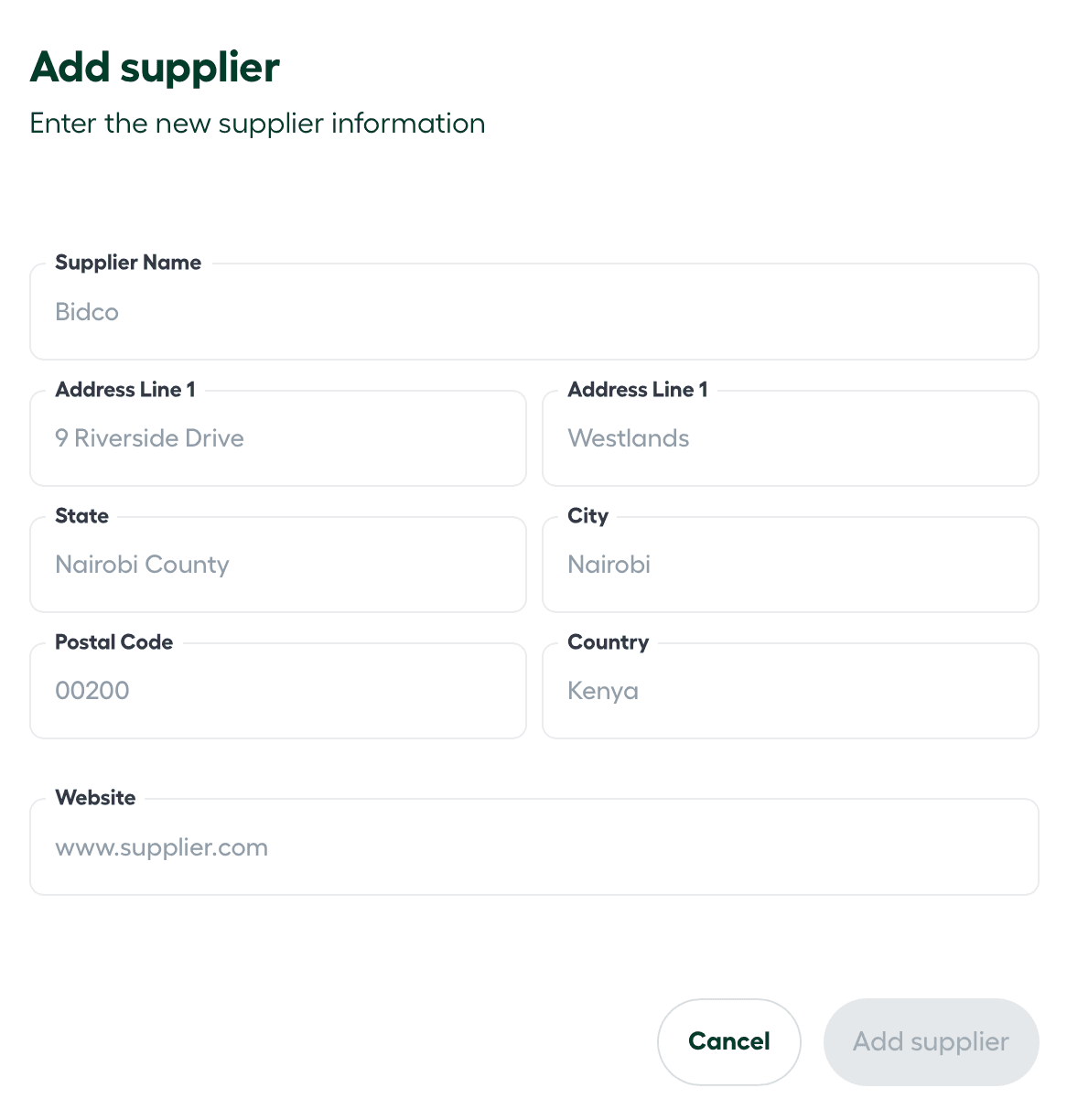
- Provide the required information in the Supplier info form:
| Field | Description |
|---|---|
| Supplier Name | The legal or trade name of the vendor. |
| Address Line 1 | The primary street address or registered office. |
| Address Line 2 | (Optional) Suite, floor, or secondary address details. |
| City/State/Postal Code | The geographic location details for the supplier’s headquarters. |
| Country | Select the country of operation from the dropdown menu. |
| Website | The official URL for the supplier’s digital storefront or portal. |
-
Click Add supplier to submit the profile for review.
-
Once approved, the supplier will be active in your list, allowing for further edits, inventory updates, and order management.
Managing Supplier Contacts
Supplier contacts act as the primary liaison between your storefront and the vendor. Maintaining accurate contact data is essential for coordinating logistics and resolving inventory discrepancies.
Key Responsibilities
A designated supplier contact typically manages:
- Order Fulfillment: Ensuring requested inventory is processed, packed, and delivered to the correct location on schedule.
- Logistics Coordination: Liaising with third-party transport companies for product delivery.
- Inventory Updates: Providing real-time information regarding product availability, backorders, or discontinuations.
- Account Management: Handling queries, complaints, and general communication regarding service levels.
How to Add a Supplier Contact
-
Navigate to the Suppliers page and locate the specific supplier.
-
Click the Actions (ellipsis) icon in the top-right corner of the supplier card and select View.
-
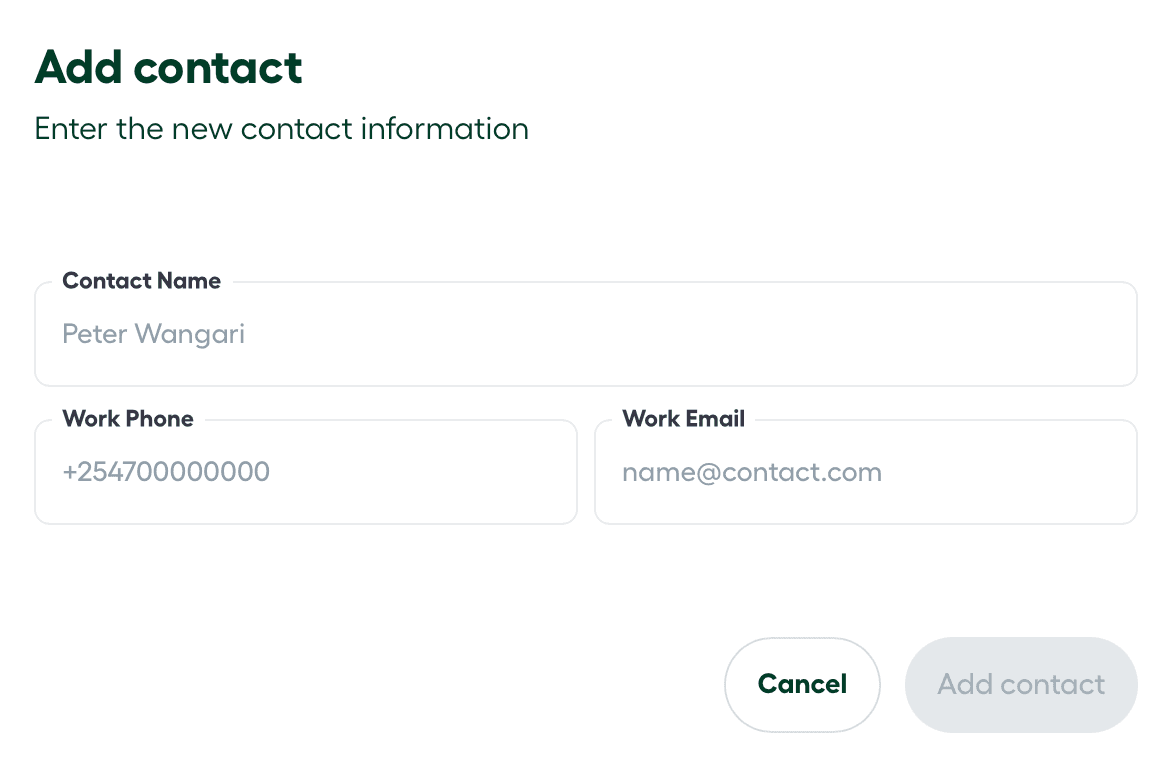
On the Supplier Contacts page, click Add contact.
-
Fill in the following fields:
- Contact Name: The full name of the individual representative.
- Work Phone: A direct business line or mobile number.
- Work Email: The professional email address (preferably using the supplier’s corporate domain).
-
Click Add Contact to save the information.
The contact is now available to be linked to inventory orders and automated communication workflows.
Explore how to create and manage inventory orders for your suppliers in Inventory Orders.